
Support Tickets
Help tickets from riders and drivers with a topic, description and photo, live chat between the user and your staff, assignment, resolve and close, plus the Support overview dashboard.
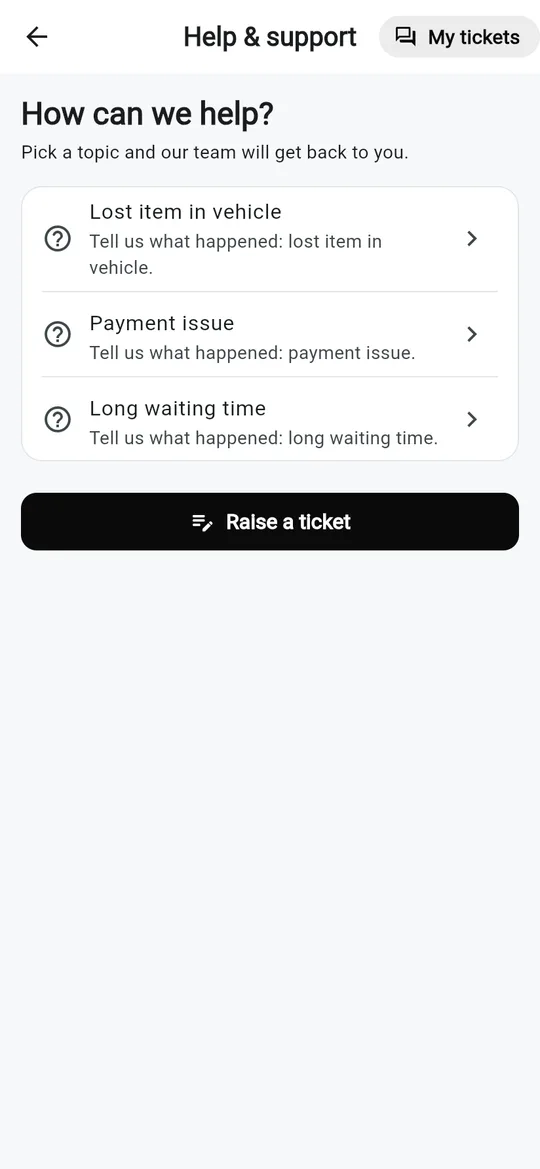
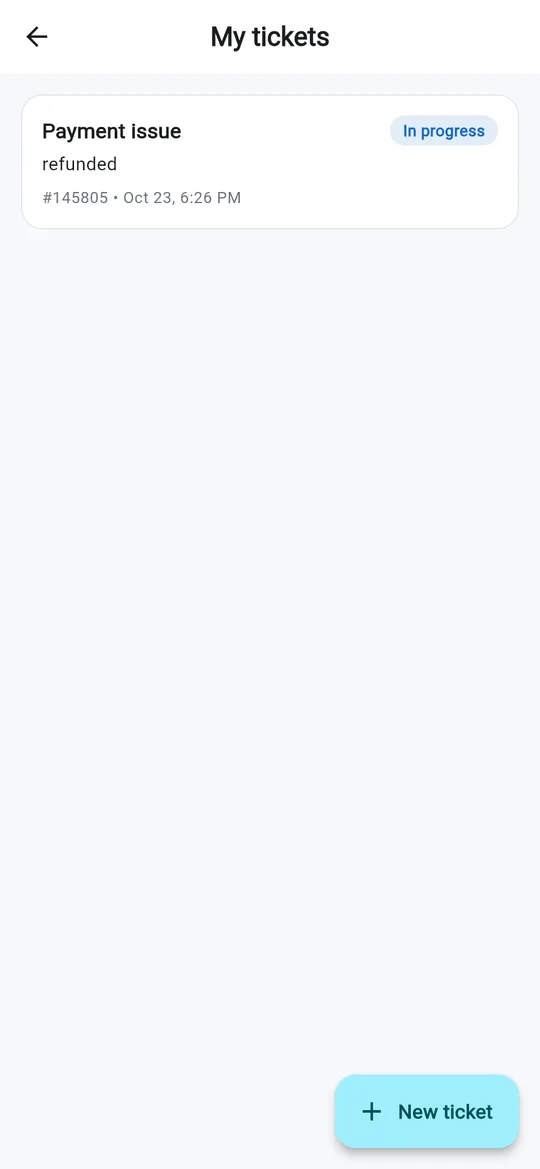
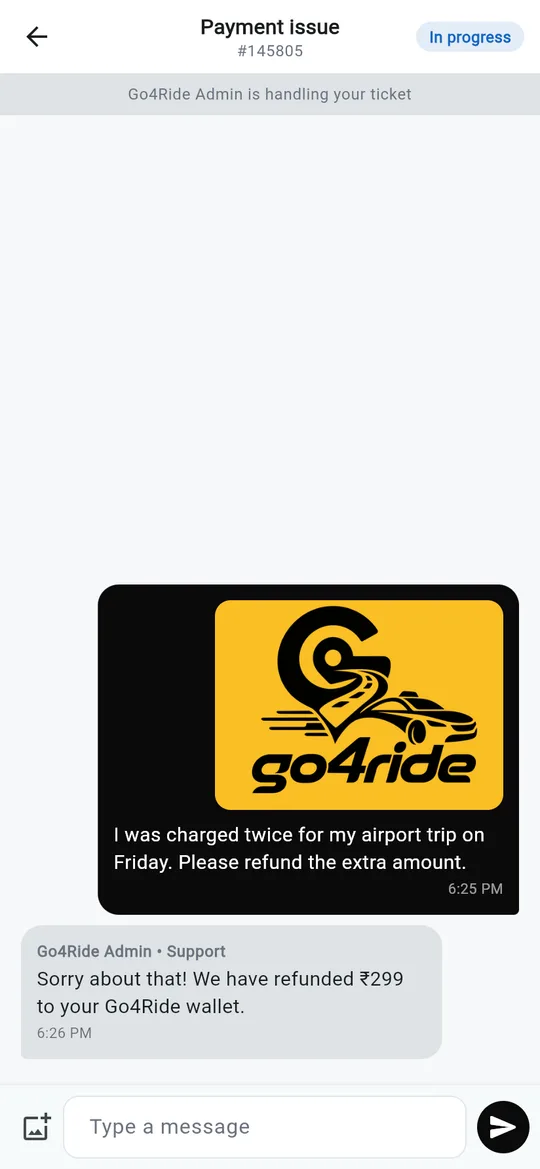
Riders and drivers ask for help from the Help screen of their app. Each request becomes a ticket with a live chat. Your team answers from Admin → Support, which has two pages:
| Page | Subtitle |
|---|---|
| Support overview | Ticket volume and response |
| Tickets | Conversations with riders and drivers. The sidebar badge counts pending tickets |
Tickets live in support_tickets, messages in support_tickets/{id}/messages.
How a ticket is created
The user picks a topic
The app's help centre lists the help reasons for that app (rider or driver). You manage them in Settings → Support → Help reasons (see General & App Settings). There is always a General enquiry option.
They describe the problem
A description, an optional photo (only when the reason has Allow image upload on) and, when the ticket is about a trip, the ride id.
The ticket is created
Status pending, a short number such as
#482913, the user's name and type (customer or driver). The description becomes the first chat message.
Support overview
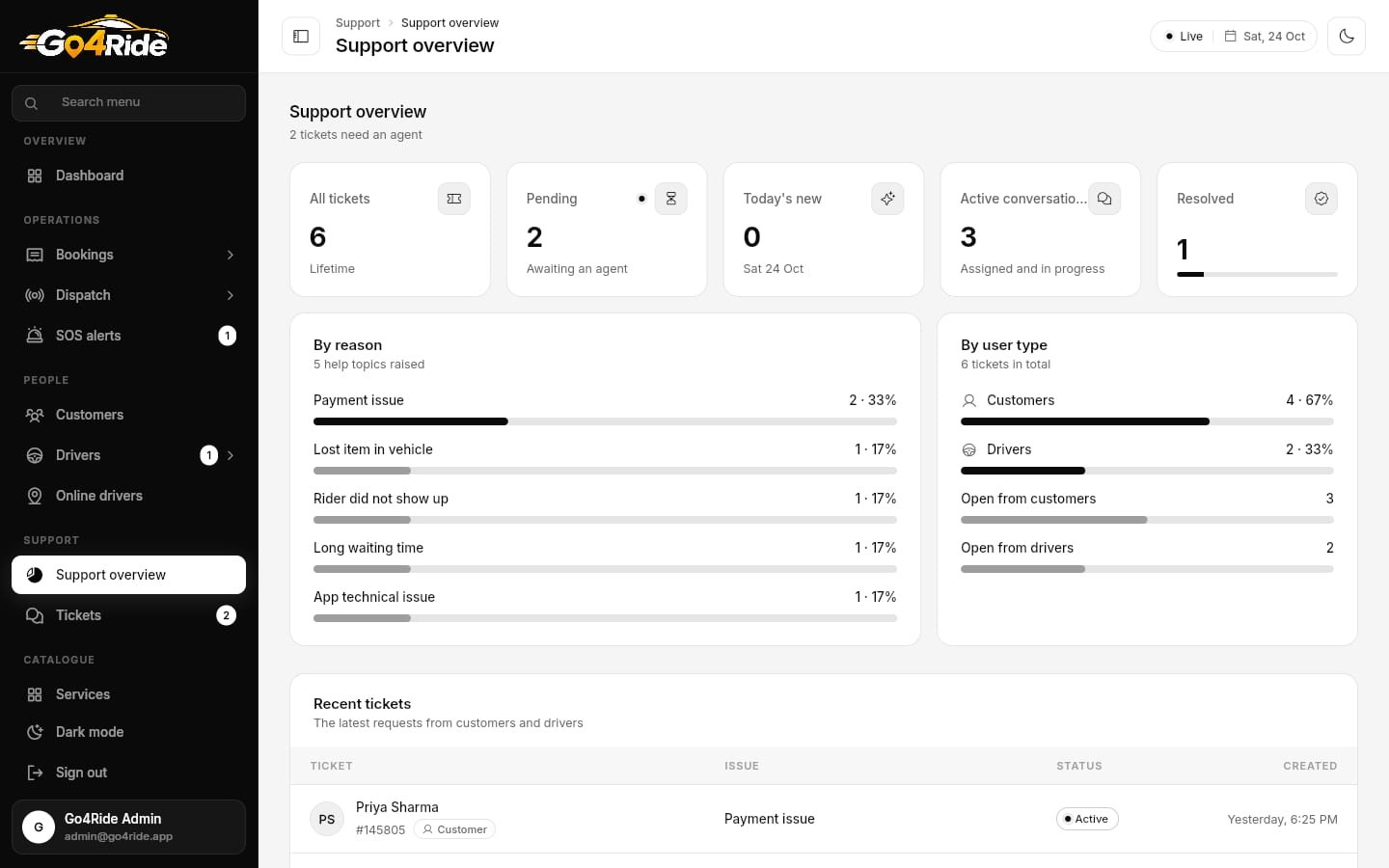
The header reads "3 tickets need an agent" or "Every ticket has an agent".
| Tile | Value |
|---|---|
| All tickets | Lifetime count |
| Pending | Awaiting an agent |
| Today's new | Tickets created today |
| Active conversations | Assigned and in progress |
| Resolved | Resolved tickets, with a progress bar of resolved + closed ÷ all |
Below the tiles: By reason (the help topics raised most), By user type (customers vs drivers, and how many are still open from each) and Recent tickets (ticket, issue, status, created).
Tickets
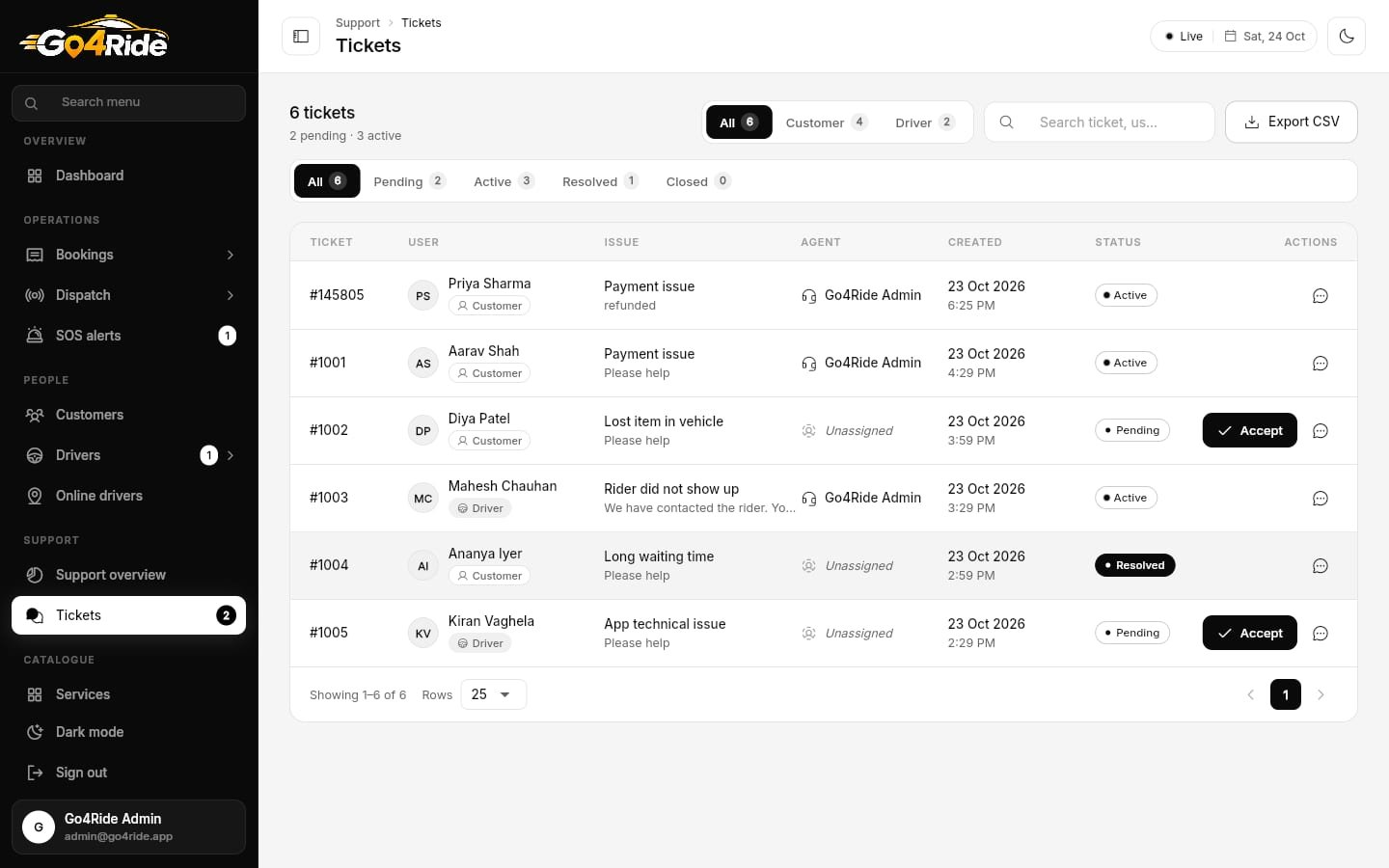
- User type tabs: All / Customer / Driver.
- Status tabs: All / Pending / Active / Resolved / Closed, with counts.
- Search ticket, user or issue (also matches the agent name and ride id).
- Export CSV: Ticket, User, User type, Issue, Description, Assigned to, Status, Ride ID, Created, Last message.
| Column | Shows |
|---|---|
| Ticket | #482913 |
| User | Name, type and the last message |
| Issue | The help reason |
| Agent | Assigned staff, or Unassigned |
| Created | Date and time |
| Status | Pending, Active, Resolved, Closed |
| Actions | Accept (pending tickets) and Open conversation |
Work a ticket
| Action | Effect |
|---|---|
| Accept | Status → active, the ticket is assigned to you: "Ticket #482913 assigned to you." |
| Reply | Type in the composer, optionally attach an image (uploaded to admin_uploads/support/{ticketId}/). Replying to a pending ticket also activates and assigns it |
| Mark resolved | Status → resolved |
| Close | Confirm "Close #482913? The conversation is archived and no further replies can be sent until it is reopened." |
| Reopen | Status → active again |
The panel shows the ticket's description, attachment (View attachment), when it was opened, the agent and the ride id with a Copy button. Messages update live on both sides.
Status flow
pending ──Accept / first reply──▶ active ──Mark resolved──▶ resolved ──Close──▶ closed
                                    ▲                                          │
└────────────────── Reopen ────────────────┘Next: Customers & Wallet →