
Setup Guide (First 10 Steps)
The ten things to do after installation, in order, so the website and the app have categories, locations, packages and payment methods to show and a buyer can complete a real purchase.
A new installation is empty: no categories, no locations, no currencies, no settings documents and no payment gateways. The website and the app show empty pages until you fill them. Work through these ten steps in order. Steps 1–9 happen in the Admin Panel (and once in the Firebase console), step 10 on the website.
Sign in and check the system
Sign in with the super-admin you created in Create the First Admin. Open Settings → System Status: Firestore, Storage and Auth must all show OK, and the runtime shows your project and region. If a check fails, recheck the backend deploy and
functions/.env. → System Status, Logs & Dummy Data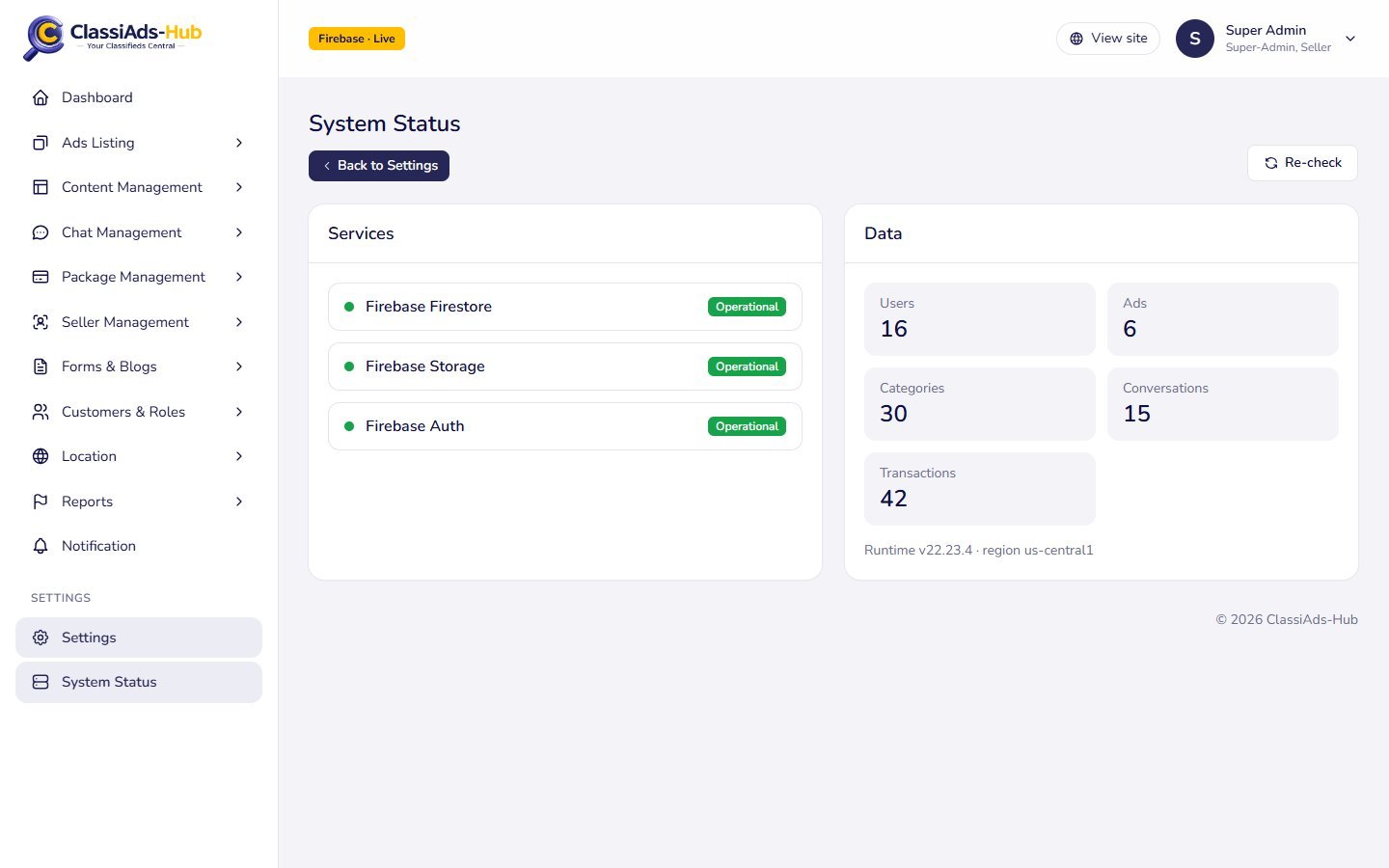
Settings → System Status: Firestore, Storage and Auth checks General settings
Settings → General: Company Name, Tagline, Email, Contact Number 1/2, Address, Default Language, the store links and versions, and the maintenance switches. In Advertisement Settings decide Free Ad Listing, Require admin approval for new ads, Require an active package to post, Ad expiry (days) (default 30), Max images per ad (10), Nearby radius (km) (25) and Tax (%). Click Save: a settings group exists only after its first save. → General, Web & SEO
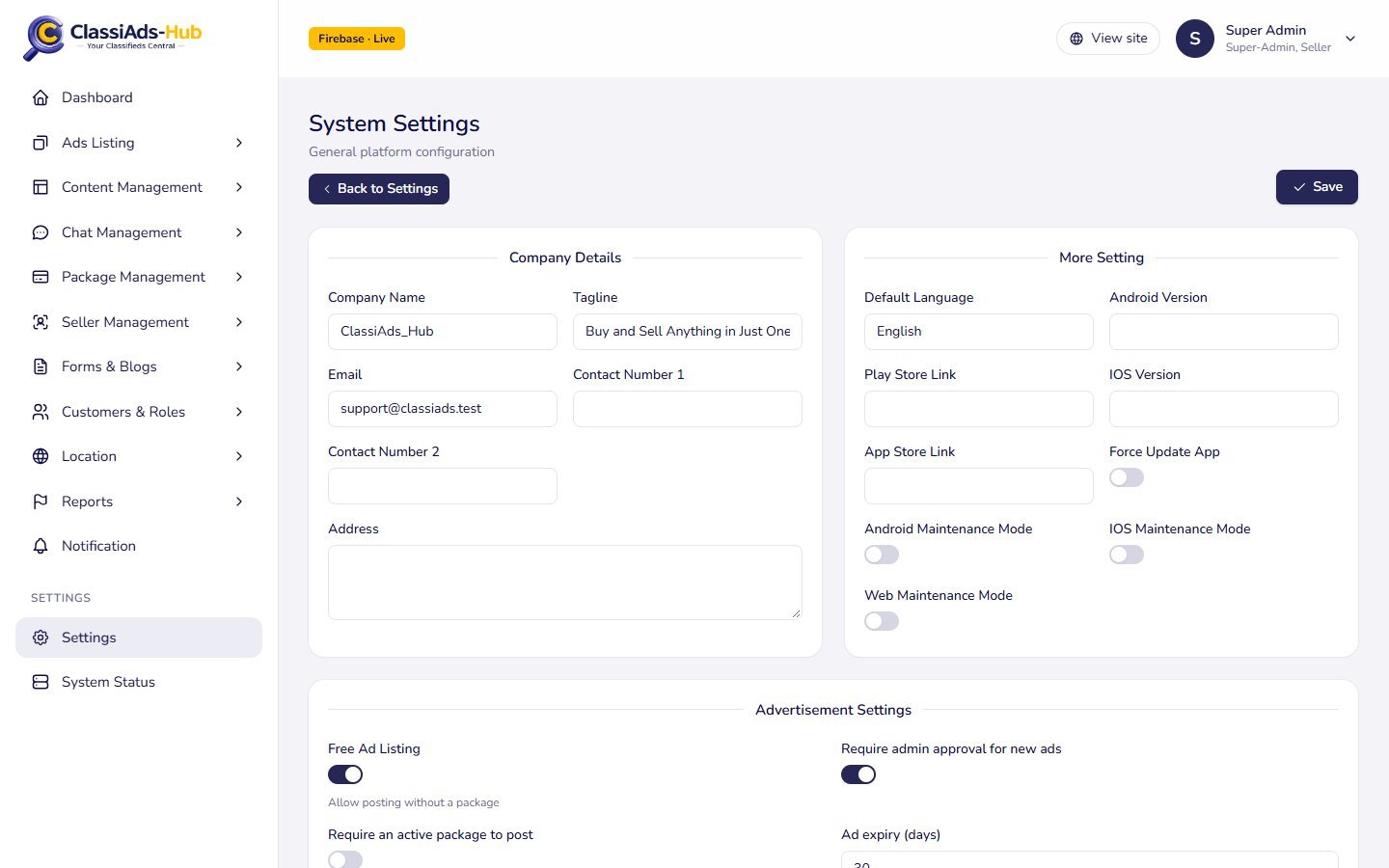
Settings → General Currencies and languages
Location → Currencies: add the currencies you sell in (code, name, symbol, symbol position, decimal digits) and mark one as default. Settings → Default Currency Settings: the currency new ads use. Settings → Languages: add languages and their translations, and mark the default. → Languages & Currency
Locations
Location → Countries, then States, Cities (with latitude and longitude for the map) and Areas. Sellers pick these when they post an ad, and buyers filter by them. → Locations
Categories and custom fields
Ads Listing → Categories: build the tree with icons and images, and set the order. Custom Fields: add the fields each category needs (for example Brand, Year, Fuel type for Cars) and attach them to the categories. Fields on a parent category also apply to its subcategories. → Categories · Custom Fields
Home page content
Content Management → Slider (images linked to an ad, a category or a URL), Home Screen (which sections show, popular categories), Feature Section (latest, most viewed, featured, by category…), Offer Item Tips and Banner Ads. → Sliders & Home Screen · Feature Sections
Packages and featured-ad plans
Package Management → Subscription Packages: price, discount, duration, ad limit or unlimited, categories and key points. Featured Ad Plans: price and duration in days. The website sells both. → Subscription Packages · Featured Ad Plans
Payment gateways
Payment keys live in Secret Manager and
functions/.env(Keys & Environment). The gateway rows themselves live in the Firestore collectionpayment_gateways, which the panel can edit but not create. On a project without the sample data, add them once in the Firestore console (see below). Then use Settings → Payment Gateways to enable them, and put your bank details into Bank Transfer → Configure. Start with test keys. → Payment GatewaysPages, reports and the checkout address
Settings → About Us / Terms & Conditions / Privacy Policy / Refund Policy / Contact Us: the CMS pages. Reports → Report Reasons, Forms & Blogs → FAQs, Chat Management → Chat Templates. In the Firestore console set
settings/general.frontend_urlto your website address (Hosting). In Settings → Notification Settings paste the web push VAPID key.Test the whole flow
Run the end-to-end test below before you open the marketplace.
Create the payment gateway rows
GET /payment-gateways lists the active rows of payment_gateways, and checkout looks them up by code. Create one document per gateway you want, with a numeric document id (1, 2, …) and these fields:
| Field | Type | Example |
|---|---|---|
id | number | 3 (same as the document id) |
code | string | stripe, razorpay, paypal, bank_transfer or sandbox |
name | string | Card (Stripe) (shown to buyers) |
is_active | boolean | false until your keys are set |
mode | string | sandbox or live (display only; the key decides the real mode) |
is_manual | boolean | true for bank_transfer, otherwise false |
sort_order | number | 1 |
config | map | For bank_transfer: instructions (string) and bank_details (string or map). Empty for the others |
sandbox completes a payment without any gateway, for testing. Create it only on a test project, and delete the document (switching it off is not enough) before you go live: see Billing & Payments.
Test a sale end-to-end
- On the website, register a test seller. The OTP code is shown on screen while the OTP provider is in Test mode.
- Post an ad in a category with custom fields, with two photos. With Require admin approval on, it shows Ad submitted for approval.
- In the panel, Ads Listing → All Ads → Requested: approve the ad. The seller gets Ad approved in their notifications.
- Register a test buyer in another browser. Find the ad with search and a custom-field filter, add it to favourites, start a chat and make an offer.
- As the seller, counter the offer, then accept the buyer's new offer. Both see the system messages in the chat.
- As the seller, open the ad's buyers and confirm the buyer. The ad becomes sold and the buyer is invited to review the seller. Leave a review as the buyer.
- As the seller, buy a subscription package on the website with a gateway test card (Stripe
4242 4242 4242 4242). You return to/checkout/resultand the package is active in the dashboard. - Feature the ad with a featured-ad plan. In the panel, Package Management → Payment Transactions lists both payments as completed, each with an invoice number.
- Pay a package by Bank Transfer, upload a receipt, then confirm it in Package Management → Bank Transfer.
- Submit seller verification documents and approve them in Seller Management → Seller Verification. The verified badge appears on the seller page.
Next: Localhost Setup →