
Registration & KYC Documents
How a new driver signs up in the Driver App: phone login, vehicle details, KYC document upload with front/back photos and expiry dates, review by your team, and fixing rejected documents.
The journey
Onboarding and login
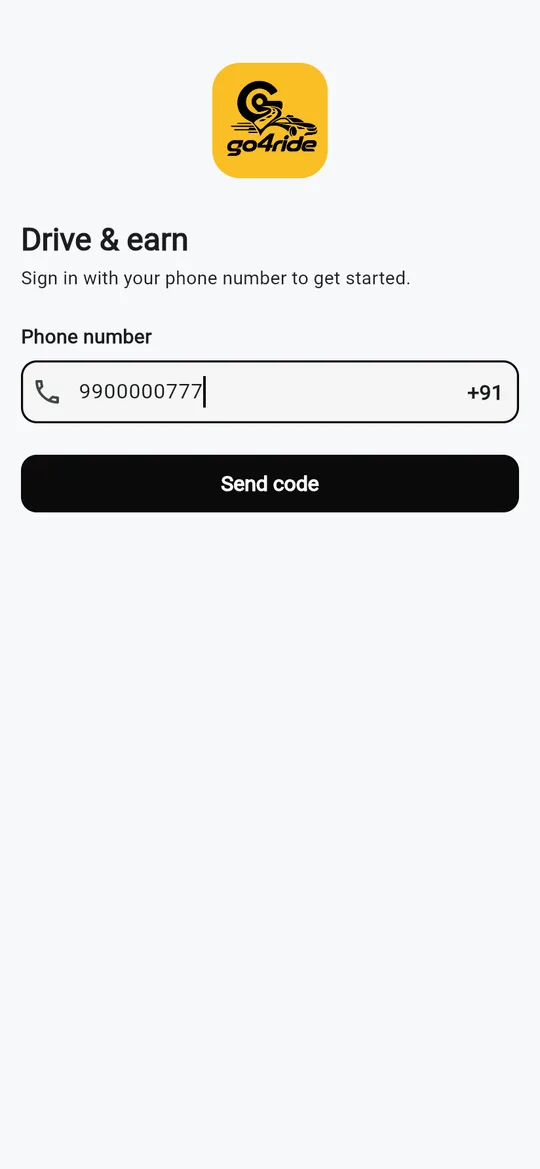
First launch: three onboarding slides, then Drive & earn → phone number → Send code → 6-digit SMS code → Verify. The login works exactly like the rider app (Phone Login (OTP)), with
+91from the driverBrandConfig.Step 1 of 2: Your vehicle
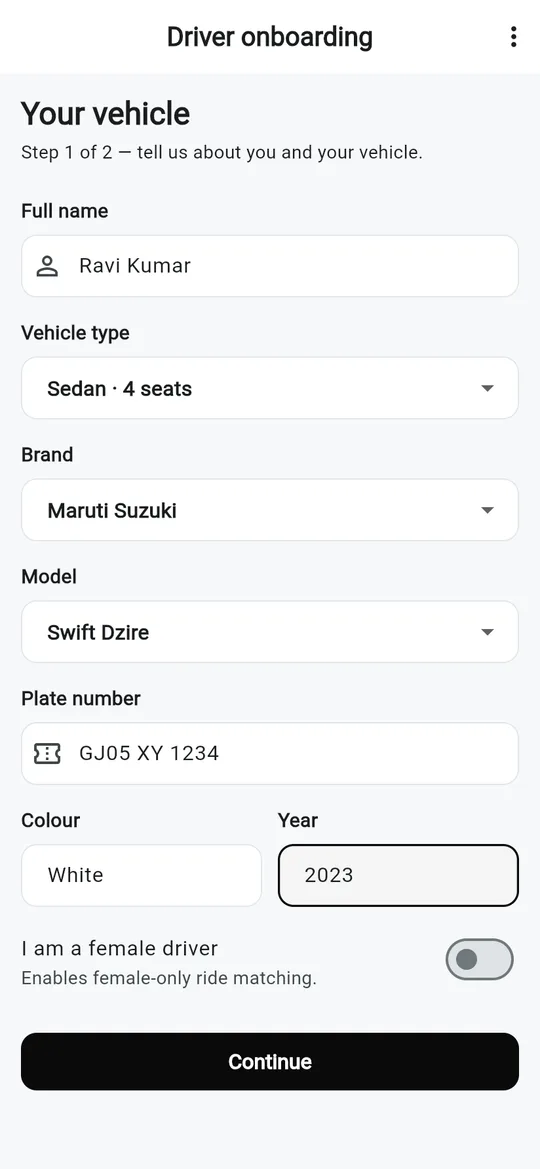
Tell us about you and your vehicle. Full name, Vehicle type (
name · seatsfrom Admin → Vehicle types), Brand and Model (from Admin → Vehicle brands and models, filtered by brand and type, with Other for free text), Plate number (saved in capitals), Colour, Year, and the switch I am a female driver. Continue createsdrivers/{uid}withkycStatus: notSubmitted.Step 2 of 2: Verify your documents
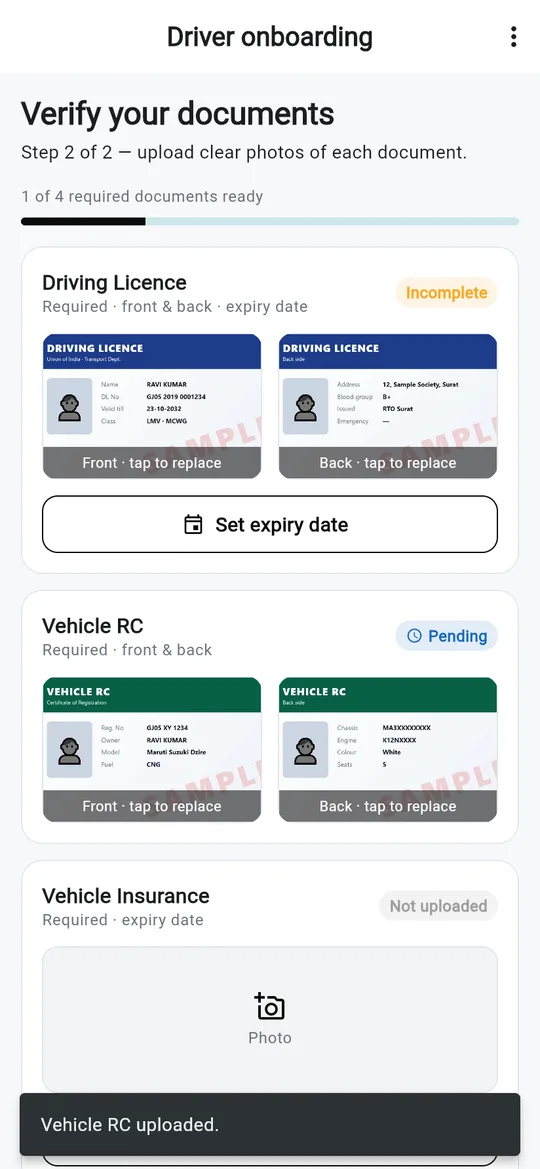
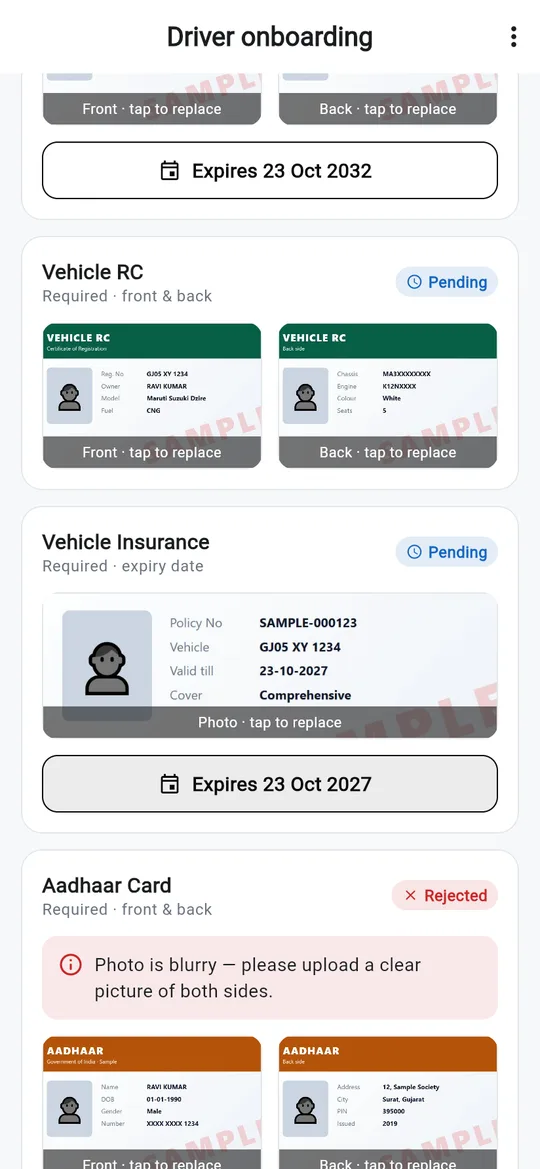
Upload clear photos of each document. One card per document type from Admin → Driver documents (Driver Documents). Each card shows its status and what it needs: a Photo (or Front and Back when the type is two-sided) and Set expiry date when the type requires one. A counter shows 2 of 3 required documents ready.
Submit for review
Submit for review becomes active once every required document is complete. The status changes to
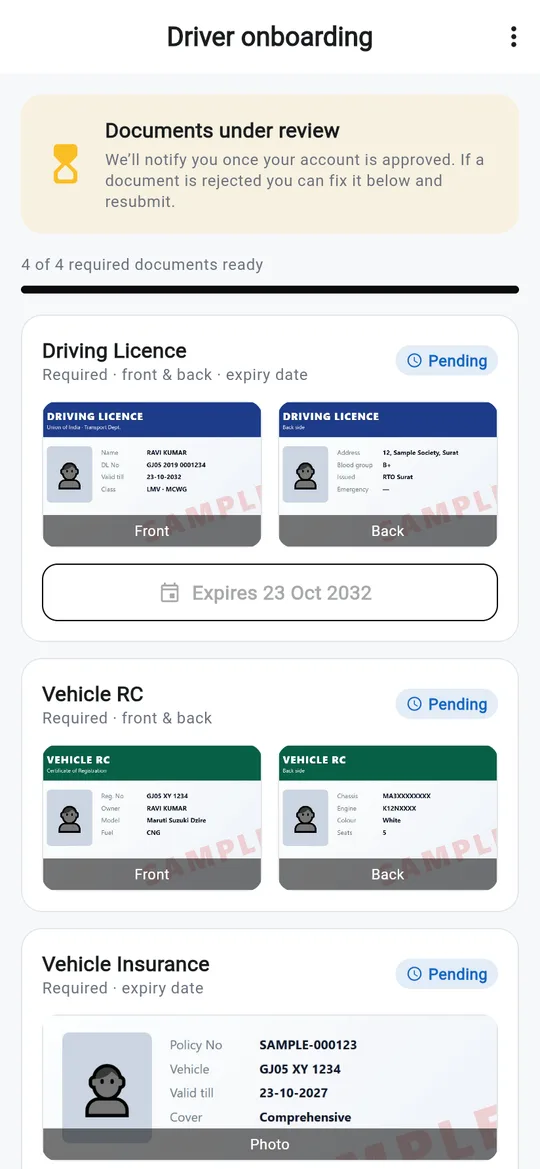
pending.Under review
Documents under review: We'll notify you once your account is approved. If a document is rejected you can fix it below and resubmit. The driver can still open Help & support, Contact us, the content pages and Edit vehicle details from the menu.
Approved
Once your team approves, the screen shows Approved! and the app opens the driver Home.
Until the driver is approved, the router only allows the registration screen, the vehicle screen, support, contact and the content pages.
Document photos
Tapping a photo slot offers Take a photo or Choose from gallery and uploads the image (quality 75 %, max 2000 px) to Cloud Storage:
kyc/{driverUid}/{documentTypeId}_front.jpg
kyc/{driverUid}/{documentTypeId}_back.jpg
The URL, the expiry (yyyy-MM-dd) and status pending are saved under drivers/{uid}.documents.{documentTypeId}. If the admin has not created any document type yet, the app falls back to three built-in ones: Driver's license, Vehicle photo and optional Insurance.
| Status pill | Meaning |
|---|---|
| Not uploaded | Nothing yet |
| Incomplete | A side or the expiry date is missing |
| Pending | Complete, waiting for review |
| Approved | Accepted by your team |
| Rejected | Rejected, with the reason shown in red on the card |
Review in the Admin Panel
Your team reviews in Drivers → pending (Drivers & KYC):
- Per document: approve or reject one document with a reason. The driver sees the reason on that card.
- Whole driver: approve or reject the driver. This calls the
reviewKycCloud Function, which setskycStatustoapprovedorrejectedand sends the driver a push (KYC approved / KYC rejected).
The security rules stop a driver from approving themselves: the only KYC change a driver can write is pending, document changes must be pending uploads, and money, rating and block fields are admin-only.
Fixing a rejected document
- The driver opens the app: the rejected card shows the reason and the photo slots are editable again.
- They upload a new photo (and expiry if needed). The document goes back to
pending. - Resubmit for review sends the whole set again.
Approved drivers can replace documents later from Account → Documents, for example before an expiry date. A replaced document returns to pending for review.
Settings that affect registration
| Admin setting | Effect |
|---|---|
| Driver documents → Required, Two-sided, Expiry required, order | The cards and what each one needs |
| Vehicle types, brands, models | The dropdowns in step 1 |
| Settings → Driver & ride → Require document verification, Auto-approve drivers | Stored with the driver rules. Approval is done by your team in the Drivers page today; the app does not auto-approve |