
Staff
Your employee directory. Add waiters, cashiers and kitchen staff, set duty status, activate or deactivate accounts and set the password they use in the Restaurant App.
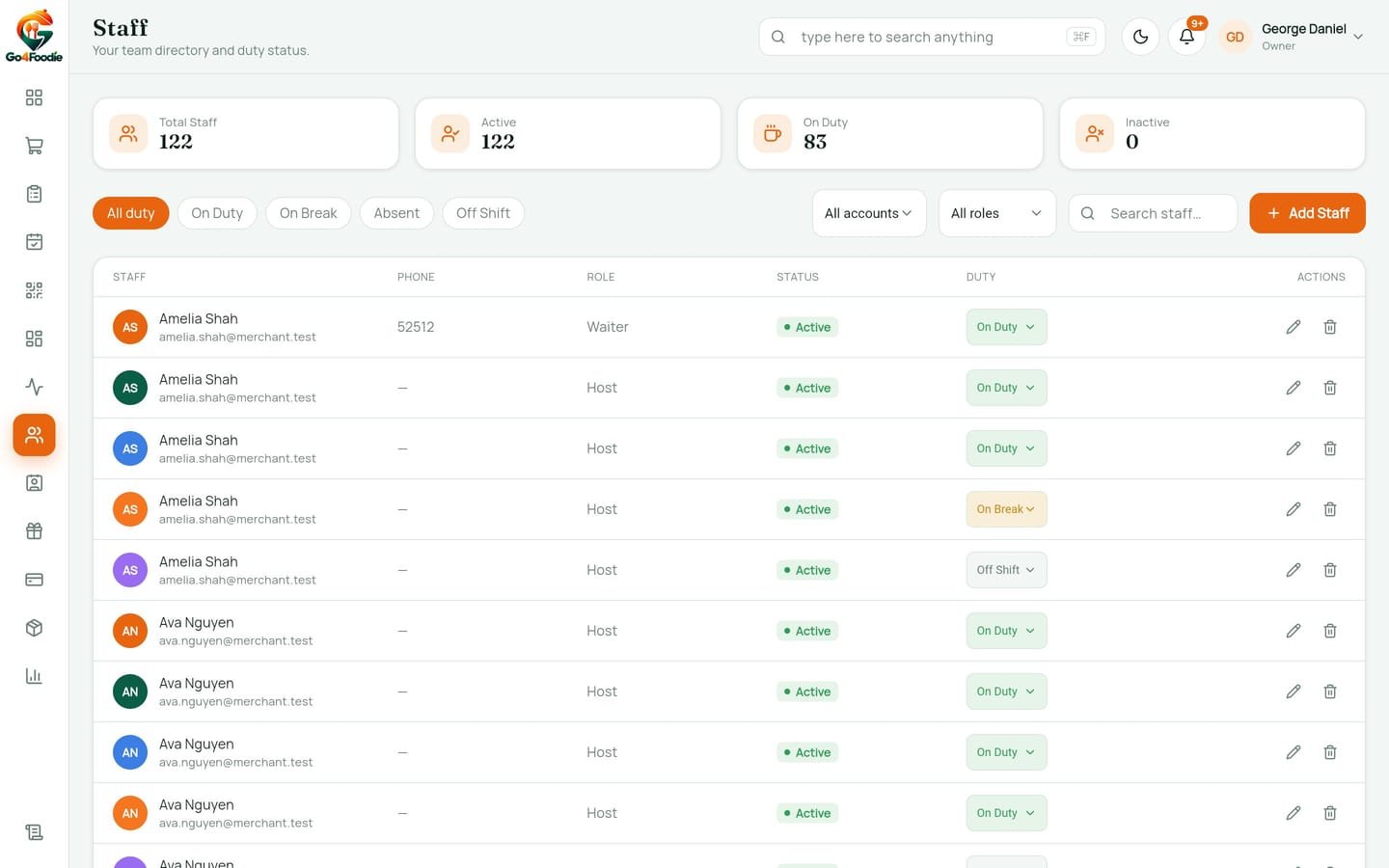
Admin → Staff ("Your team directory and duty status.") lists your restaurant employees: waiters, cashiers, kitchen staff and managers. Employees are not admin-panel users. With the email and password you set here they sign in to the Restaurant App in the mobile app (see Restaurant App), and their names appear in the Waiter list on the Floor and POS.
Permission: manage:staff (OWNER and MANAGER).
Stats
| Tile | Counts |
|---|---|
| Total Staff | All employees |
| Active | Accounts that are active |
| On Duty | Duty status On Duty |
| Inactive | Deactivated accounts |
Filters
Each filter takes you back to page 1.
| Filter | Options |
|---|---|
| Duty pills | All duty / On Duty / On Break / Absent / Off Shift |
| Account | All accounts / Active / Inactive |
| Role | All roles, Super Admin, Manager, Cashier, Kitchen Staff, Waiter (plus any other role found in your data) |
| Search | Search staff… (name or email) |
Staff table
| Column | Shows / does |
|---|---|
| Staff | Initials avatar, name, email |
| Phone | Phone or — |
| Role | Employee role |
| Status | Active / Inactive pill. Click to toggle ("Click to deactivate" / "Click to activate") |
| Duty | Coloured drop-down: On Duty (green), On Break (amber), Absent (red), Off Shift (grey) |
| Actions | Edit, Delete |
The list shows 12 staff per page. The footer reads "24 staff · page 1 of 2", with previous / next arrows. If nothing matches you see "No staff match your filters."
Changes to status, duty and delete apply immediately. If the server refuses one, the row goes back to its previous value and an error toast appears.
Duty status
| Value | Label | Used for |
|---|---|---|
ON_DUTY | On Duty | Working now |
ON_BREAK | On Break | Temporarily away |
ABSENT | Absent | Expected but not in |
OFF | Off Shift | Not scheduled. New staff start here |
The dashboard's Employee Status gauge counts On Duty / On Break / Absent. See Dashboard.
Add a staff member
Open the form
Click Add Staff. The modal is titled Add staff.
Fill in the details
Field Rule Name At least 2 characters: "Name is required" Email Valid email: "Enter a valid email". This is their Restaurant App login Phone Optional Role Super Admin, Manager, Cashier, Kitchen Staff or Waiter (default Waiter) Password At least 6 characters ("Min 6 characters"). Leave it empty and the employee can't sign in to the app Active (can be deactivated to disable the account) Ticked by default Save
Click Add staff. The employee is attached to your first outlet with duty Off Shift. Send them their email and password so they can sign in to the Restaurant App.
Roles and app access
The employee's Role decides what they can do in the Restaurant App:
| Employee role | Permission role in the app |
|---|---|
| Super Admin, Manager | MANAGER (everything except settings) |
| Cashier, Kitchen Staff, Waiter | STAFF (dashboard, orders, reservations, operate the floor) |
See Roles & Permissions for the full matrix.
Edit, deactivate or delete
- Edit (pencil): change any field, then click Save changes. The password field reads "(leave blank to keep)". Leave it empty to keep the current password, or type a new one (at least 6 characters) to reset it.
- Deactivate (click Active): the employee keeps their history but can't sign in to the Restaurant App ("Your staff account is inactive.") and is removed from the Waiter list.
- Delete (trash): confirm "Delete staff member "Maria"?". The employee and their login are removed. Past table sessions they served stay, but without a waiter name.
Next: Customers →