
Menu
Add dishes with photos, set prices and ratings, switch items and whole categories on or off for the website and POS.
Admin → Menu holds every dish you sell. The same menu feeds the website, table QR ordering, the POS and the mobile app.
Permission: manage:menu (OWNER and MANAGER). The sidebar icon (clipboard) is hidden for Staff.
Categories card
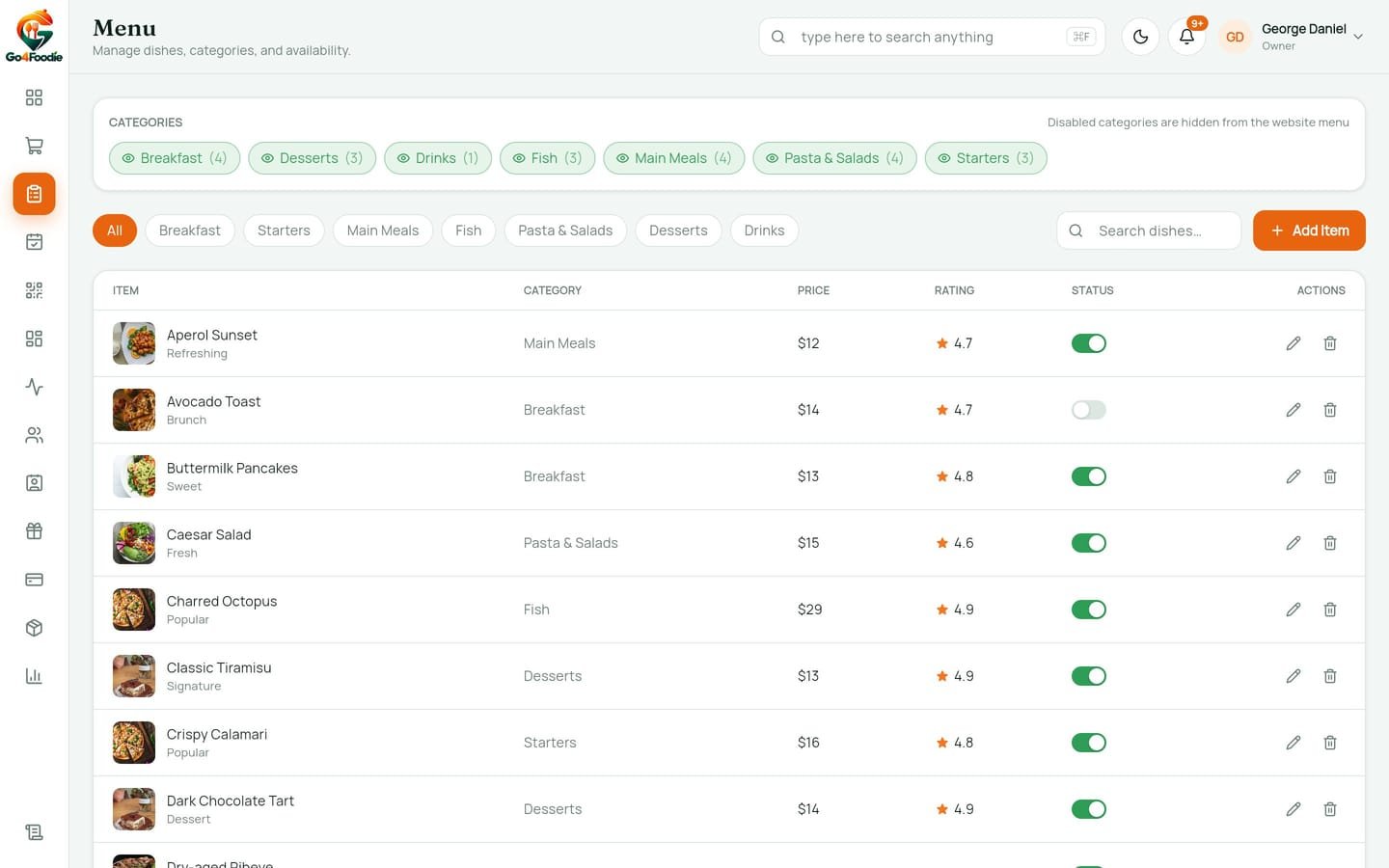
The card at the top (caption CATEGORIES, "Disabled categories are hidden from the website menu") shows one chip per category in the database, with its item count, e.g. Desserts (6).
| Chip | Meaning | Click to |
|---|---|---|
| Green, eye icon | Category is active: shown on the website | Hide it ("Click to hide from website") |
| Grey, eye-off icon, struck through | Category is disabled: the category and all its items are hidden from the storefront | Show it again ("Click to show on website") |
The chip flips immediately and the change is saved in the background.
Find a dish
- Category pills: All, Breakfast, Starters, Main Meals, Fish, Pasta & Salads, Desserts, Drinks.
- Search dishes…: matches the dish name or tag.
Menu table
| Column | Shows |
|---|---|
| Item | Thumbnail, name and tag |
| Category | One of the seven menu categories |
| Price | e.g. $26 |
| Rating | Gold star + rating (0–5) |
| Status | Availability switch: green = Available, grey = Unavailable |
| Actions | Pencil (edit), trash (delete) |
If nothing matches you see "No dishes match your filters." The footer shows "Showing X of Y items."
Add or edit a dish
Open the form
Click Add Item, or the pencil on a row. The modal title is Add menu item or Edit menu item.
Fill in the details
See the field table below.
Add a photo
Paste an image URL, or click Upload and choose an image file. While it uploads the button reads Uploading…, and when it finishes the preview shows the photo.
Save
Click Add item (new) or Save changes (edit). The list updates immediately.
| Field | Placeholder / default | Rule and message |
|---|---|---|
| Name | Truffle Risotto | At least 2 characters: "Name is required" |
| Description | Short description of the dish… | At least 4 characters: "Add a short description" |
| Category | Main Meals | One of the seven categories above |
| Tag | Popular | Optional label shown under the name (and as the dashboard's trending subtitle) |
| Price ($) | 0 | A number ≥ 0: "Price must be positive" |
| Rating (0–5) | 0 | "Number must be greater than or equal to 0" / "Number must be less than or equal to 5" |
| Image | A default food photo | Must be a valid URL: "Enter a valid image URL" |
| Available on menu | Ticked | Unticked items are hidden from ordering |
A category is created automatically the first time a dish uses it. After that it appears in the Categories card.
Image upload
"Paste an image URL or upload a file (max 5MB)." Uploaded files are stored in your Cloud Storage bucket under uploads/ and served from https://your-api-host/api/uploads/<file>.
| Message | Cause |
|---|---|
| Only image files are allowed | The file is not an image (PNG, JPG, WebP, GIF, AVIF, SVG) |
| Image must be under 5MB | The file is larger than 5 MB |
| Could not save image | Storage write failed (check the Storage bucket exists, see Firebase project) |
| Upload failed | Network or other error |
Availability
Click the Status switch to take a dish off the menu, for example when it sells out. Unavailable dishes disappear from the website, from QR table ordering and from the POS menu picker. Dishes already on an open bill stay there.
Delete a dish
Click the trash icon and confirm "Remove this item from the menu?".
Next: Tables & QR codes →